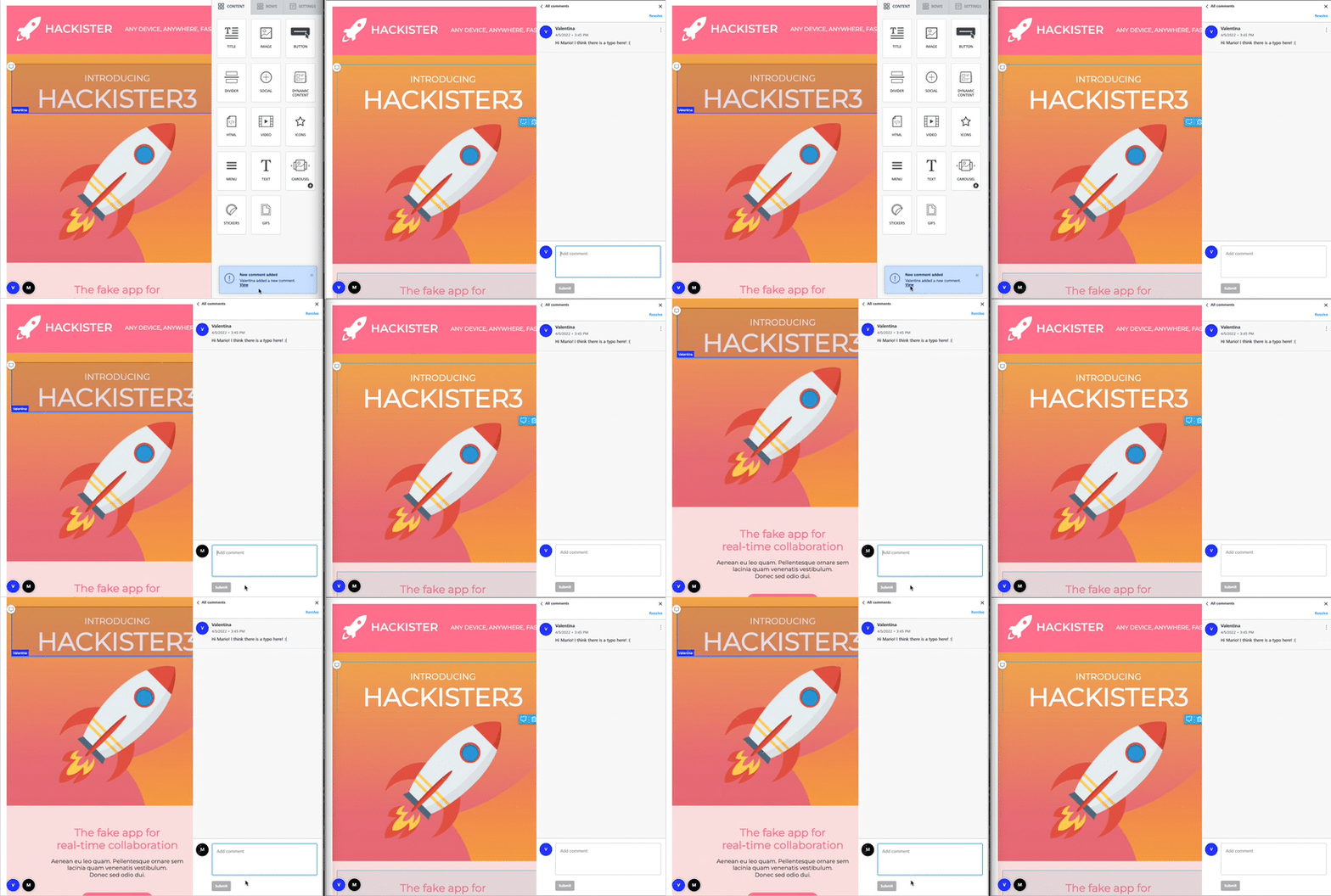
# Commenting
{% hint style="info" %}
The Commenting feature is available for [Core plan or higher](https://developers.beefree.io/pricing-plans).
{% endhint %}
## Overview
With Commenting, teams using your application can **collaborate asynchronously** on the same email, page or popup, in order to **get their work done** more quickly and **reach approval** for going live more efficiently.
When Commenting is enabled, your end-users (or contributors, as we’ll call them in this context) can:
* **Add a new comment** in any content block or row, so that the **context** of the discussion is always visible;
* **Reply** to an existing comment and **start a thread;**
* Mark existing **threads as resolved**, and **reopen** solved threads if necessary.
* **Copy** the text of a comment, and **paste** it back to the content area
* **Preview comments** by hovering over the comment icon
* Automatically **highlight the row** where a thread is posted
* **Receive a notification** straight in the builder when a new comment is added during a co-editing session (Superpowers users only).
## Use cases
With Commenting, you enable **asynchronous, visual collaboration** when multiple collaborators are creating, editing, and reviewing content in the Beefree builders. This collaborative feature can prove extremely beneficial in different contexts, regardless if contributors are in the same team, in separate teams, or even in different companies (e.g. digital marketing agencies collaborating with their clients):
* have a **single source of truth** for feedback and requests on the content created with the builders;
* cut **time-to-publish**, reducing back and forth conversations, both online and offline;
* get **sign-off** for going live for email and web campaigns more efficiently.
## How to activate it
**Commenting** – like most other features – is made available to Beefree SDK customers in an OFF state by default, and must be activated in the Beefree SDK Console.
To do so:
* [Login into the Beefree SDK Console](https://developers.beefree.io/)
* Click **Details** next to the application you want to configure
* We recommend you first familiarize with Commenting in a Development or QA application
* Learn more about [Production vs. Development application here](https://docs.beefree.io/beefree-sdk/~/changes/480/getting-started/readme/development-applications)
* Click **view more** under Application configuration.
* Toggle **Enable commenting** ON and click the **Save** button to activate Commenting for the application.
To activate Commenting when launching your Beefree application, you will need to pass a `username`, `userHandle`, and a `userColor` in the configuration parameters. See this example:
```javascript
const beeConfig = {
language: 'en-US',
...
username: 'Test User',
userColor: '#cae5f1'
userHandle: 'd09b0f5d-e08b-4dca-b7ae-6010b5da04d3' // unique id
...
}
```
## How it works
### **Adding comments and starting threads**
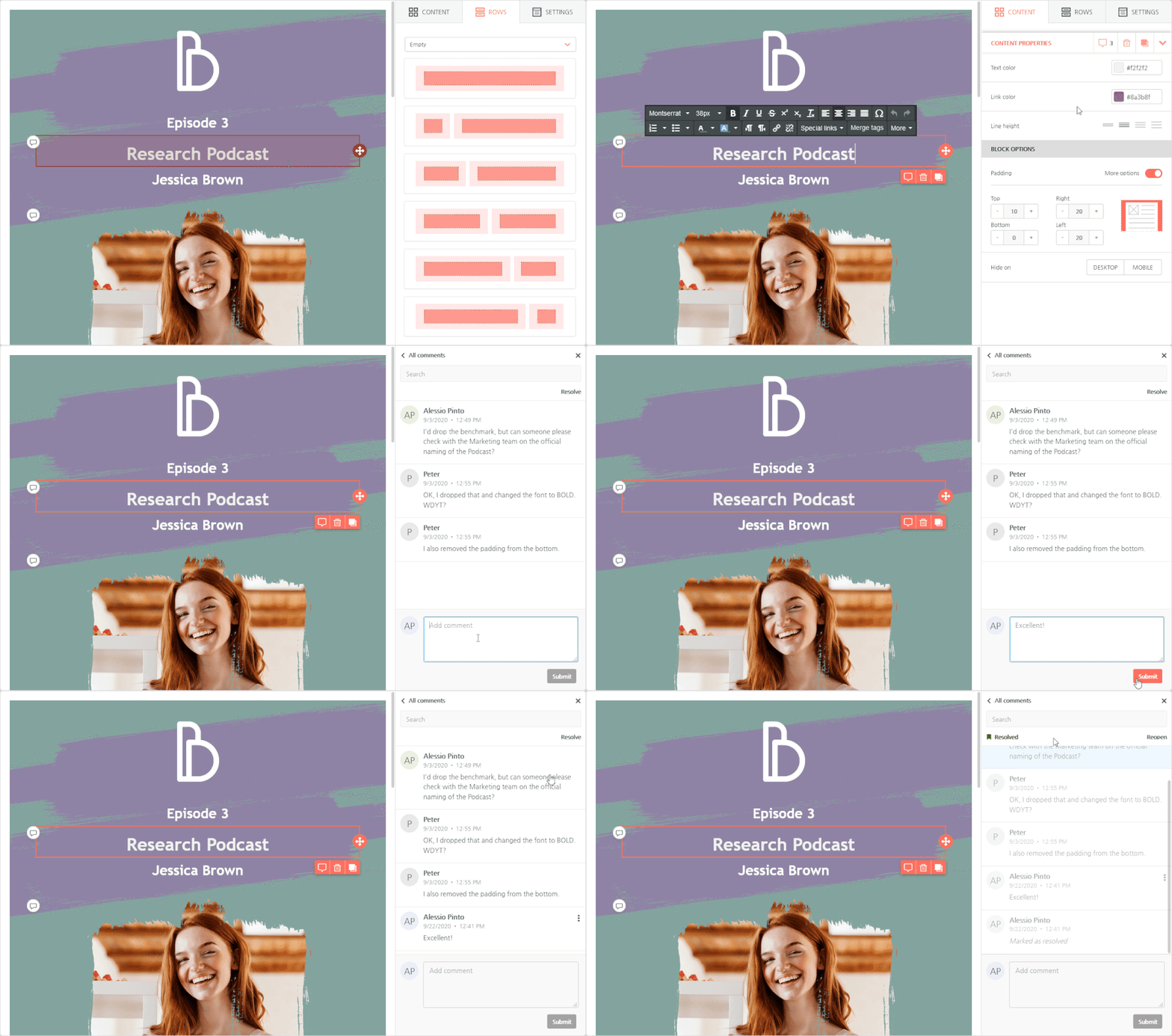
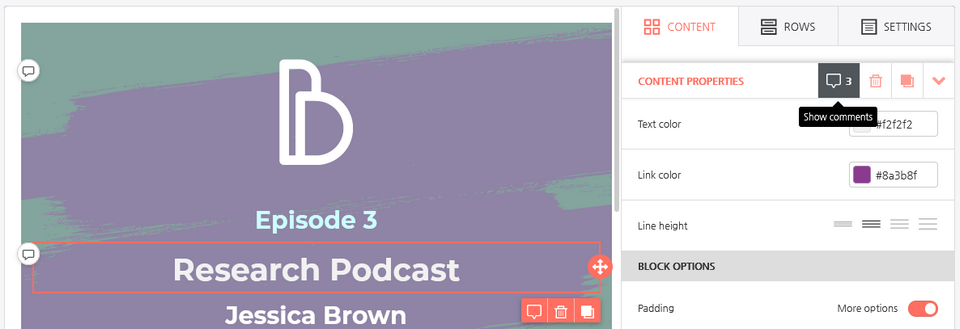
When opening an email, a landing page or a popup, a contributor can add a new comment to a content block or a row by clicking the “Balloon” icon, available in two spots:
* in the row or block outline, inside the editing stage
* in the header of the Row properties or Content properties
{% embed url="" %}
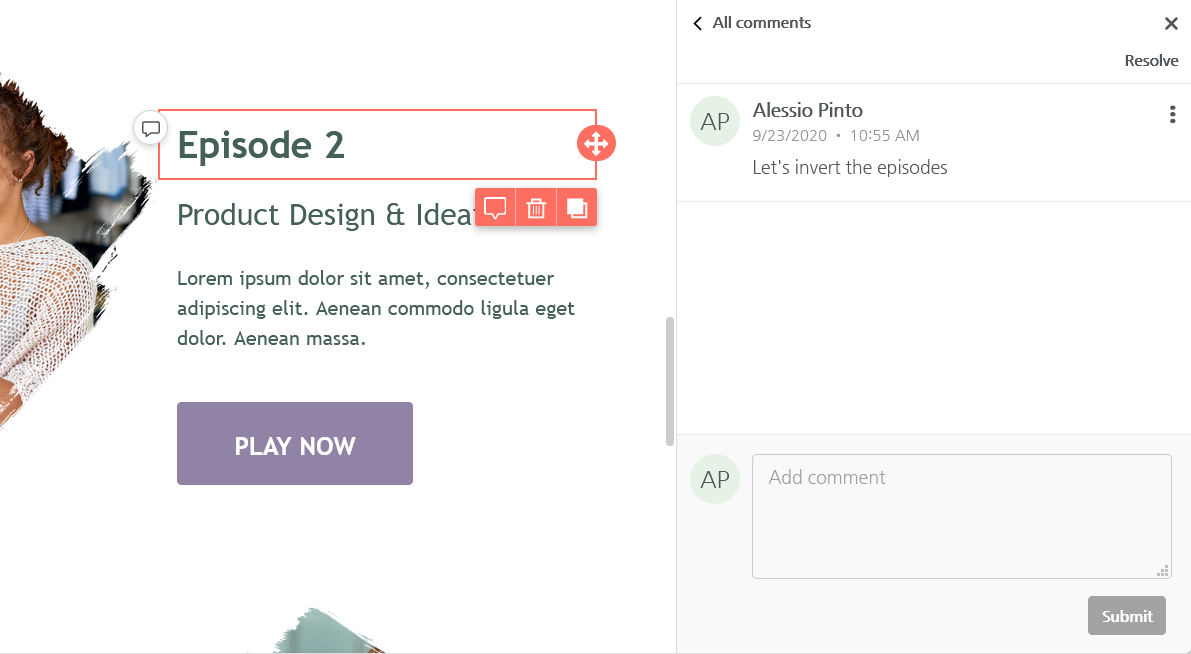
Clicking one of these two icons will activate the **commenting panel**, which takes over the editor sidebar. From there, the user can insert a new comment. After the first comment, another contributor can start a thread by adding a second comment.
## **Mentioning someone in a comment**
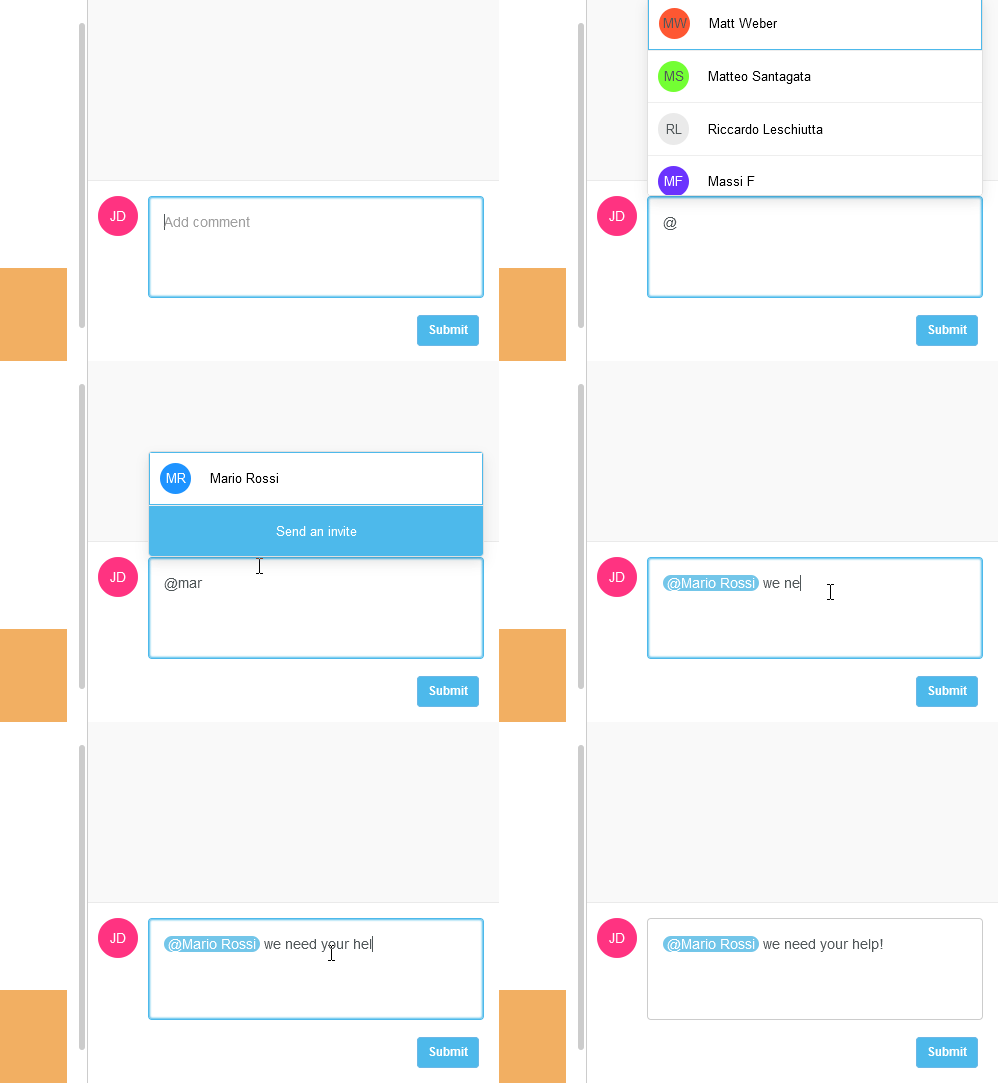
If you have implemented mentions, users can type @ to bring up a list of contributors and tag them in the comment. If the user starts typing, the list will be filtered If you’ve built a notification system around Commenting, you can use this piece of information to trigger a notification towards the mentioned person.
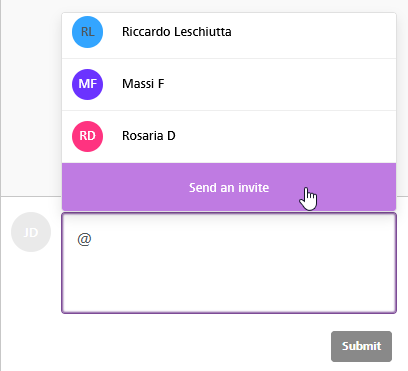
If you added a Content dialog for mentions, the action will be triggered by the button at the end of the list. You will define the CTA for this button as part of the Content dialog configuration (in this case, “Send an invite”).
## **Interacting with threads**
If there has already been some activity, the editing stage shows whether a content block or row has any comments by displaying a small comment icon. The sidebar instead indicates the number of existing comments for the selected row or content block, three in this case.
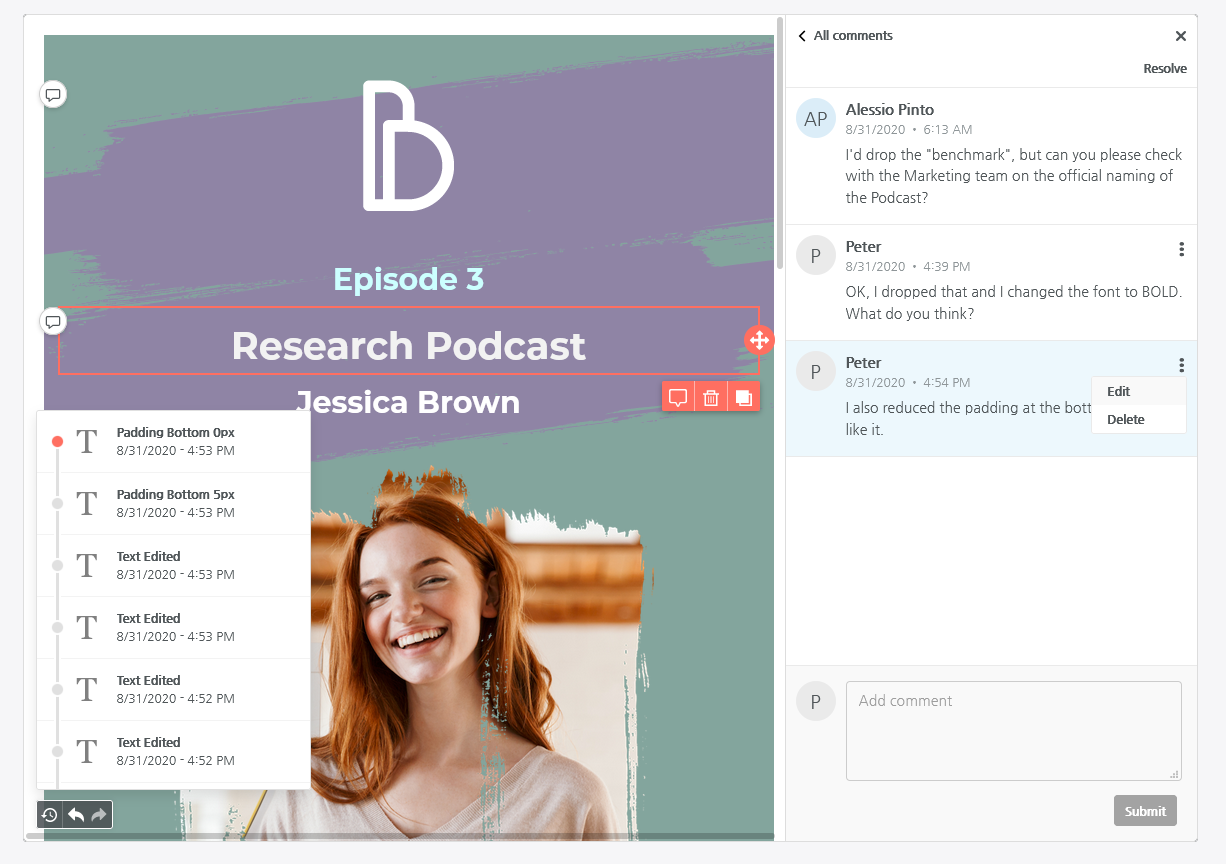
Activating the Commenting panel will bring up the thread. In this case, it will show the three comments.
**Existing comments** can be **edited** or **deleted** by the contributor that added them. Contributors may also **resolve comments** when they have reached a consensus and completed any pending task.
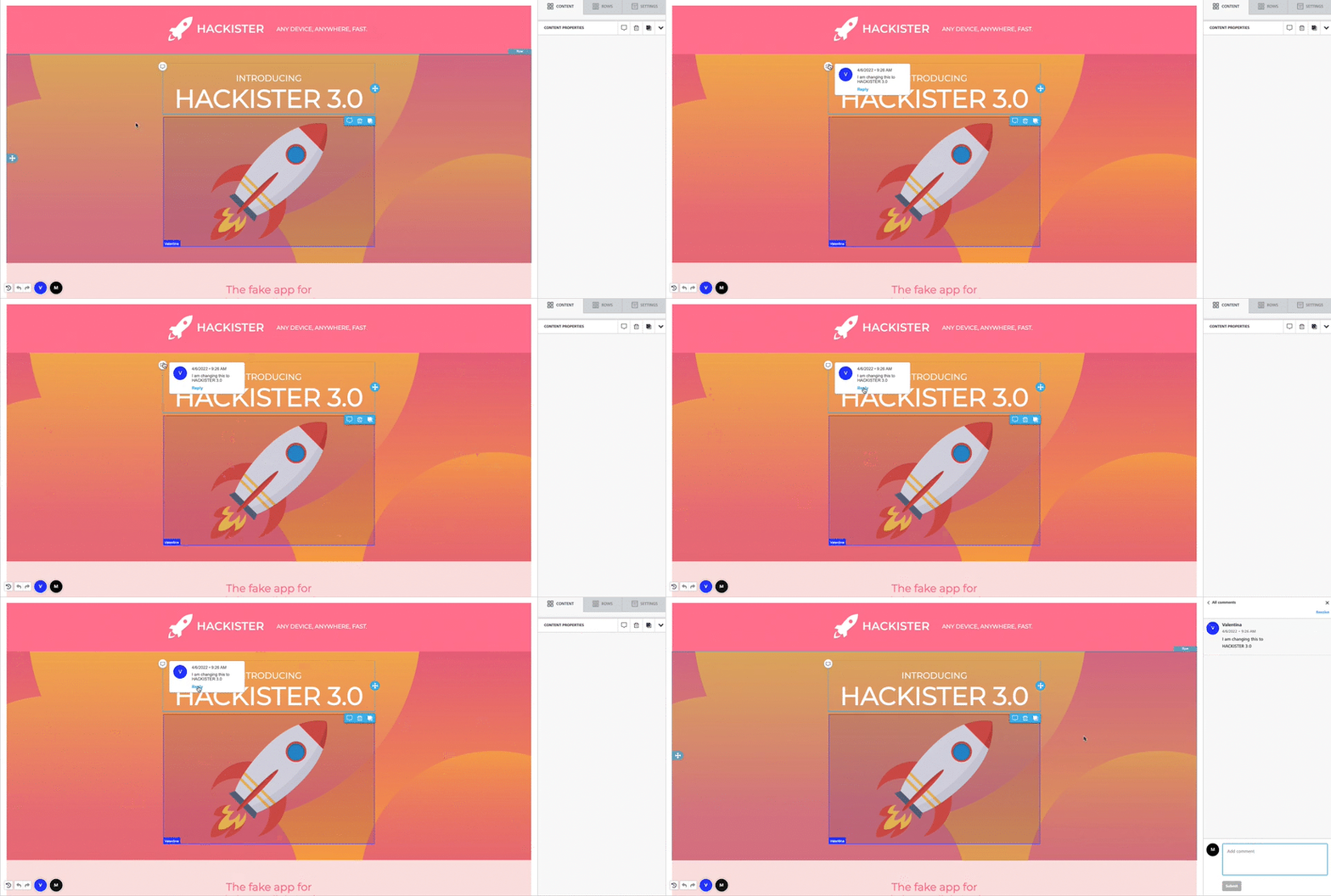
Improved accessibility to in-line threads. Hover the mouse over the comment icon to see a preview of the last comment added.
## **Browsing threads and closing the commenting panel**
Clicking on **< All comments** in the top section will bring up a list of all comment threads, indicating which ones have been resolved and which ones are still open. Contributors can search inside comments and filter out solved threads, or threads that were part of deleted content. Deleted and hidden comments will be filtered automatically.
To go back to the editor sidebar, contributors can close the Commenting panel by clicking the **X** icon in the upper right, or they can just click on another row or content block in the stage.
Quickly reopen resolved threads by adding a new comment, expand threads with a click, and show a comment thread preview straight from the content area.
## **Copy comment text and paste it to content area**
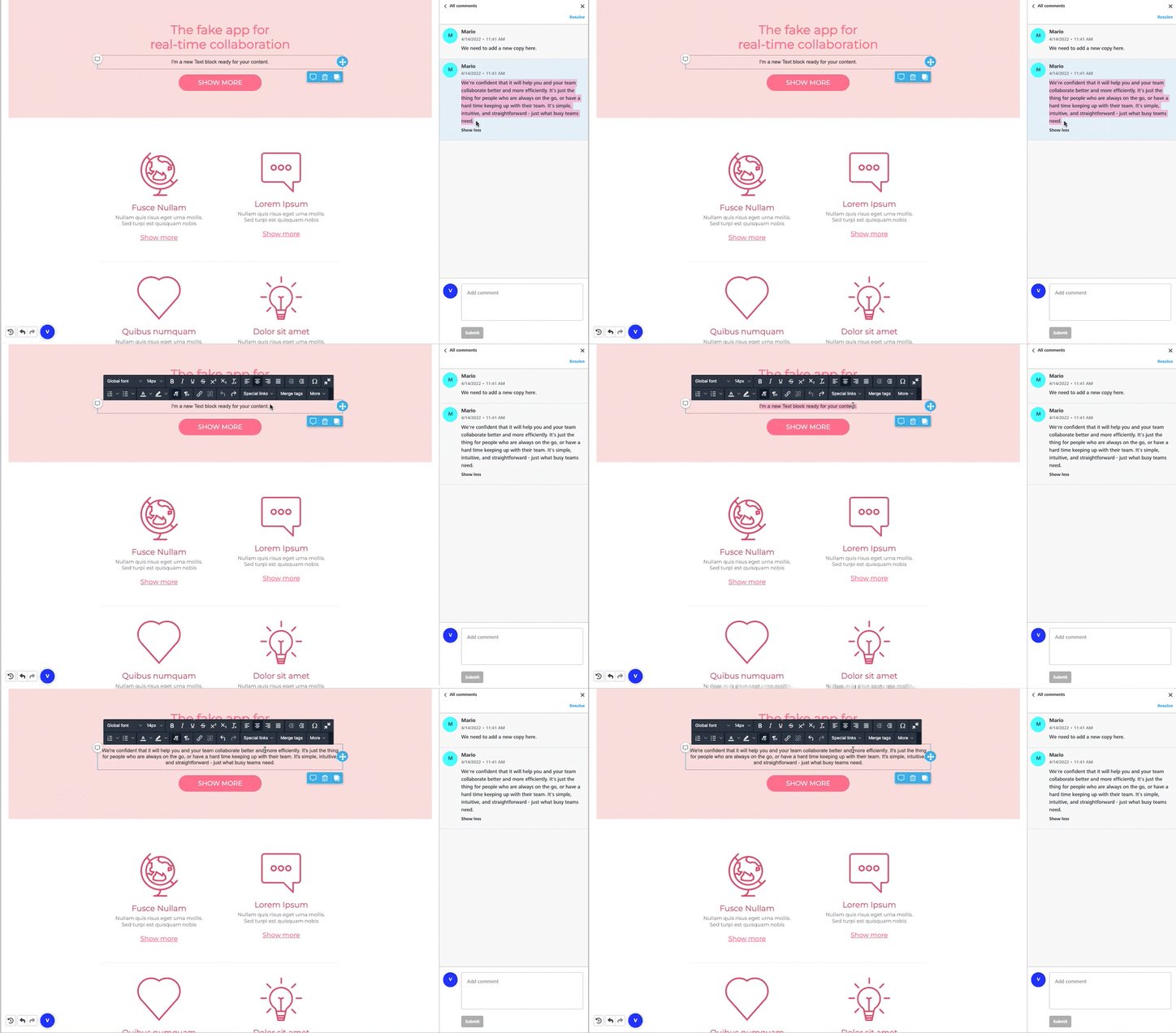
Suggest edits in seconds, and save time with the copy/paste feature. Copy text from the comment body and paste it directly into the content area.
## **Real-time notifications when a new comment is added**
If you subscribed to a Superpowers plan, and have [co-editing](https://docs.beefree.io/beefree-sdk/~/changes/480/other-customizations/collaborative-editing) enabled, your users will never lose a new comment again with the new notification system. Users will receive real-time notifications whenever a new comment is added to the document straight in the builder.
By clicking on the notification, they will be able to quickly open the comment, and highlight the element where the conversation is taking place. The toast notification can be styled with [custom CSS](https://docs.beefree.io/beefree-sdk/~/changes/480/other-customizations/appearance/custom-css) to match your application look-and-feel.
If you want to learn how to implement co-editing in your application, check the related documentation article [here](https://docs.beefree.io/beefree-sdk/~/changes/480/other-customizations/collaborative-editing).
## The Reviewer Role
With the **Reviewer** role, you can now allow users to collaborate on your projects without changing the design. This role helps provide peace of mind by allowing inexperienced users to work with the team on their designs, without fear of accidentally changing it.
In short, this new role has the following characteristics:
* Can’t apply changes to the message
* Can add comments and start threads
* Can edit their own comments
* Can view other comments
This new role can be easily enabled by passing the following parameter in your configuration:
```javascript
beeConfig: {
role: 'reviewer',
...
}
```
Once you turn on the feature in the Beefree SDK Console, you may want to **disable Commenting for some customers**. You can do so via the client-side configuration document that you feed to your Beefree application when initializing the editor.
Why? Because you may decide to make the feature available to customers of your application:
* **depending on the subscription plan** that they are on (i.e. you could push users to a higher plan based on the ability to use Commenting);
* **depending on the purchase** of an optional feature (same);
* only if they are **“beta” customers**, so they see it while keeping it hidden from the rest of your users.
Here’s how to do so:
* Enable Commenting in the Beefree SDK console, as mentioned above.
* Add the configuration parameter commenting to the beeConfig document
* Set it to false for all users that cannot comment.
Here is a simple example:
```javascript
const beeConfig = {
language: 'en-US',
...
commenting: false // boolean
...
}
```
```javascript
var beeConfig = {
...
contentDialog: {
...
getMention: {
label: 'Send an invite',
handler: userInput('Who do you want to mention?', {
username: 'Jerry Doe',
value: 'Jerry Doe',
uid: "f6287c33-6e77-40cb-8a5d-66d62b4f38bb",
})
},
```
## Managing notifications
You can build a **notification system** around commenting by triggering a callback for events in the Commenting layer. When these events happen, the Beefree system triggers the `onComment` callback.
You can **react to that callback** by taking the information provided in it (e.g. the user that created the comment, the text of the comment, any mentioned user, date & time of the comment, etc.) and **send notifications**.
You are free to define:
* which events will trigger a notification
* how it is sent (e.g. Email, In-app, Slack, etc.)
* what exactly it says
Again, remember that the Beefree platform **only triggers the callback**, and it’s up to you to react, if you want. Below you can find the technical details on the comments schema and the `onComment` callback.
## Sample code for email notifications
We’ve put together a [sample code](https://github.com/BeefreeSDK/beefree-sdk-sample-client) that illustrates how to send email notifications, triggered by a mention in a comment. This code shows how to:
* Define an array to hold the list of mentioned users in the comment payload.
* Loop through the comment payload and add any strings matching a regex to the array
* Compare each value in the array with the ‘handle’ property of each user (as defined by the host application), to grab the active users
* Loop through your array and pull the respective email address for the handle matches (for use in notifications)
* Send the notification through email (via ajax), slack, etc… (you decide and implement how to send the notification)
The following JSON is saved as part of the template:
```javascript
"comments": {
"aab0227f-766d-439d-b3d9-8bf7d04d551f": {
"content": "Here is a comment",
"parentCommentId": null,
"elementId": "ab35241d-dd69-4980-9385-862fedd094e4",
"responses": [
"84f11738-a5a2-49db-956a-ae95b4d1db67"
],
"timestamp": "2020-09-07T13:58:43.147Z",
"author": {
"userHandle": "abfb7e82-3b9a-45fc-a40d-b22221f6a7f5",
"username": "Test User",
"userColor": "#dddddd"
},
"isElementDeleted": false
},
"84f11738-a5a2-49db-956a-ae95b4d1db67": {
"content": "Here is a second comment",
"parentCommentId": "aab0227f-766d-439d-b3d9-8bf7d04d551f",
"elementId": "ab35241d-dd69-4980-9385-862fedd094e4",
"responses": [],
"timestamp": "2020-09-07T13:59:51.954Z",
"author": {
"userHandle": "d09b0f5d-e08b-4dca-b7ae-6010b5da04d3",
"username": "Test User B",
"userColor": "#cae5f1"
},
"isElementDeleted": false
}
}
```
You may want to save multiple copies of a template, e.g. to create a history/revision or a draft feature.
In such cases, you may decide to store the comments in a database, and add the schema back to the template when it’s loaded. Alternatively, you can keep the comments inside the template, and it will become a static part of the history.
Comments can also be added dynamically, but it’s an advanced task, which requires matching the comment schema to the target content by its “elementId”.
## Commenting Callback
When a thread or comment changes, the Beefree system triggers the `onComment` callback. The callback returns the following details:
### **change**
* JSON contains all the details on the change
### **comments**
* JSON array of the entire comments schema, as described in the previous section.
### **threadUsers**
* JSON contains the `contributors` array with all users in a thread.
## Change Schema
### **type**
* `NEW_COMMENT`
* `COMMENT_THREAD_RESOLVED`
* `COMMENT_THREAD_REOPENED`
* `COMMENT_EDITED`
* `COMMENT_DELETED`
### **payload**
JSON contains all the details of the change
### **Example of new comment payload**
```javascript
{
"change": {
"type": "NEW_COMMENT",
"payload": {
"commentId": "a2c555e4-72f7-4e7f-96cd-537e5eb2069c",
"comment": {
"content": "add new Text block and logo here!",
"parentCommentId": null,
"elementId": "73dcc71b-1ba7-458d-81b8-59ec54e534a5",
"mentions": [],
"responses": [],
"timestamp": "2022-04-05T13:53:28.089Z",
"author": {
"userHandle": "0.6379069806343958",
"username": "John Doe",
"userColor": "#ff4400"
}
}
}
},
"comments": {
"a2c555e4-72f7-4e7f-96cd-537e5eb2069c": {
"content": "add new Text block and logo here!",
"parentCommentId": null,
"elementId": "73dcc71b-1ba7-458d-81b8-59ec54e534a5",
"mentions": [],
"responses": [],
"timestamp": "2022-04-05T13:53:28.089Z",
"author": {
"userHandle": "0.6379069806343958",
"username": "John Doe",
"userColor": "#ff4400"
}
}
},
"threadUsers": {
"contributors": [
{
"userHandle": "0.6379069806343958",
"username": "John Doe",
"userColor": "#ff4400"
}
]
}
}
```
## Adding mentions
You can activate a mention dialog for comments by adding a data source to the Beefree application configuration. You can use the “Hooks” data source method to fetch data from your application and pass it to the Beefree system in real-time.
To configure a hook data source, define the `hooks` section in your bee config and implement the `getMentions` method.
```javascript
var beeConfig = {
...
hooks: {
getMentions: {
handler: async (resolve, reject, args) => {
const mentionedPeople = [{
"userColor": "#FF5733",
"username": "John Doe", // Displayed in dialog
"value": "John Doe", // Inserted mention value
"uid": "11c8482f-c05d-4480-9861-6d5c64ffbc4a"
}, {
"userColor": "#74FF33",
"username": "userdef5678",
"value": "Jane Doe",
"uid": "ed43043f-1c15-4133-bedb-e78efb69e0ba"
}]
let filtered = mentionedPeople
if (typeof args === "string") {
filtered = mentionedPeople.filter(item => item.username.toLowerCase().includes(args.toLowerCase()))
}
resolve(filtered)
}
},
...
```
You can also extend the default mention dialog via Content Dialog. For example, you can enable end-users to to invite an external user not available in the data source.
To configure a hook content dialog, define the `contentDialog` section in your Beefree application configuration and implement the `getMention` method.
```javascript
var beeConfig = {
...
contentDialog: {
...
getMention: {
label: 'Send an invite',
handler: userInput('Who do you want to mention?', {
username: 'Jerry Doe',
value: 'Jerry Doe',
uid: "f6287c33-6e77-40cb-8a5d-66d62b4f38bb",
})
},
```
You can generate a link to a specific comment, which can be used to notify the user. Common use cases include sending a link via email, Slack, API, or via in-app messaging. To implement this action use the `onComment` callback combined with a new instance method called `showComment`.
### **Here’s how it works:**
The `onComment` callback contains the comment’s id and a new section called “mentions” containing an array of mentioned users’ uid values.
```javascript
"mentions": [
"45b9cdd1-60af-4235-ac9f-ddcb7b07a9e0",
"04b3a1a3-ab04-46f7-b03b-e651357b54ab"
],
```
With the `uid`, your application can look-up the user’s contact details. The Beefree platform does not track any sensitive information, such as user emails!
Similarly, since mentions can trigger events and the `uid` can generate notifications, you can match `uid` to `userHandle`.
Next, using the comment’s id, your app can generate a link back to the email containing the comment. The new `showComment` instance method can be invoked from Beefree’s `onLoad` callback to send the user directly to the comment as soon as the editor is fully loaded and ready.
Note: In the sample below, `getParameterByName` is a function that takes the `commentId` from the browser’s URL query string.
```javascript
onLoad: function () {
bee.showComment(getParameterByName('commentId'))
},
```