# Preview Designs and Templates
{% hint style="info" %}
Preview is available on all [Beefree SDK plan types.](https://developers.beefree.io/pricing-plans)
{% endhint %}
## Overview
This page discusses how you can activate and customize the Preview option within Beefree SDK. The Preview option within Beefree SDK allows your end users to view how their designs and templates look before they export and prepare to send them. It is a helpful environment for viewing designs and templates across different devices, languages, display conditions, and more.
## What to Customize
There are views you can customize within the preview page. These view options include:
* [Custom languages](https://docs.beefree.io/beefree-sdk/~/changes/480/other-customizations/advanced-options/custom-languages): Customize the "Preview Mode" text visible on the preview page.
* [Multi-language templates](https://docs.beefree.io/end-user-guide/design-for-any-language/multi-language-templates): When enabled, you can enable your end users to browse how their template looks in different language versions.
* [Display conditions](https://docs.beefree.io/end-user-guide/dynamic-content/display-conditions): Allows your end users to view how the design or template looked when different conditions they configured are applied.
* [AMP or HTML view](https://docs.beefree.io/end-user-guide/dynamic-content/display-conditions): This option is available when AMP is enabled for email designs.
* [Dark mode](https://docs.beefree.io/end-user-guide/preview-options/dark-mode-preview): End users can preview designs in dark mode.
* [Desktop, tablet, or mobile view](https://docs.beefree.io/end-user-guide/design-tools/mobile-design-mode): End users can preview designs on multiple device types.
* **Custom viewport**: End users can customize the viewport window size for previewing their designs within different window types.
## Applying Customizations
This section discusses how to apply each of the customization options mentioned in the previous section.
### Custom Languages
You can use [Custom Languages](https://docs.beefree.io/beefree-sdk/~/changes/480/other-customizations/advanced-options/custom-languages) to change the default "Preview mode" text on the Preview page to any text you'd like. You can also leave the string empty in the `beeConfig` if you'd like no text.
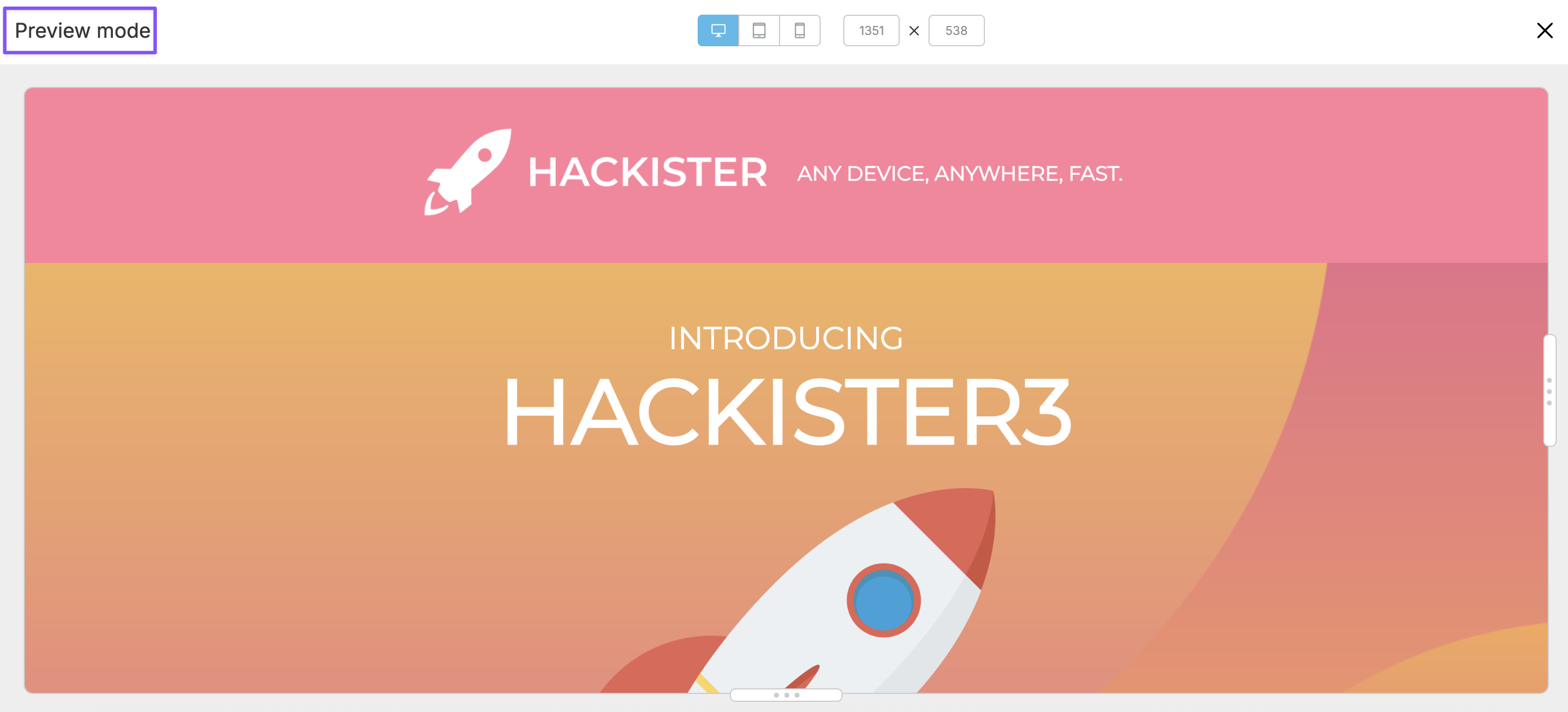
The following image shows the default "Preview mode" text on the Preview page.
The following code snippet displays an example of how you can edit the `beeConfig` to change the default text on the Preview page from "Preview mode" to "Hello World!"
```javascript
var beeConfig = {
container: 'beefree-sdk-container',
translations: {
'mailup-common-page-preview': {
'preview-mode': 'Hello World!',
},
},
```
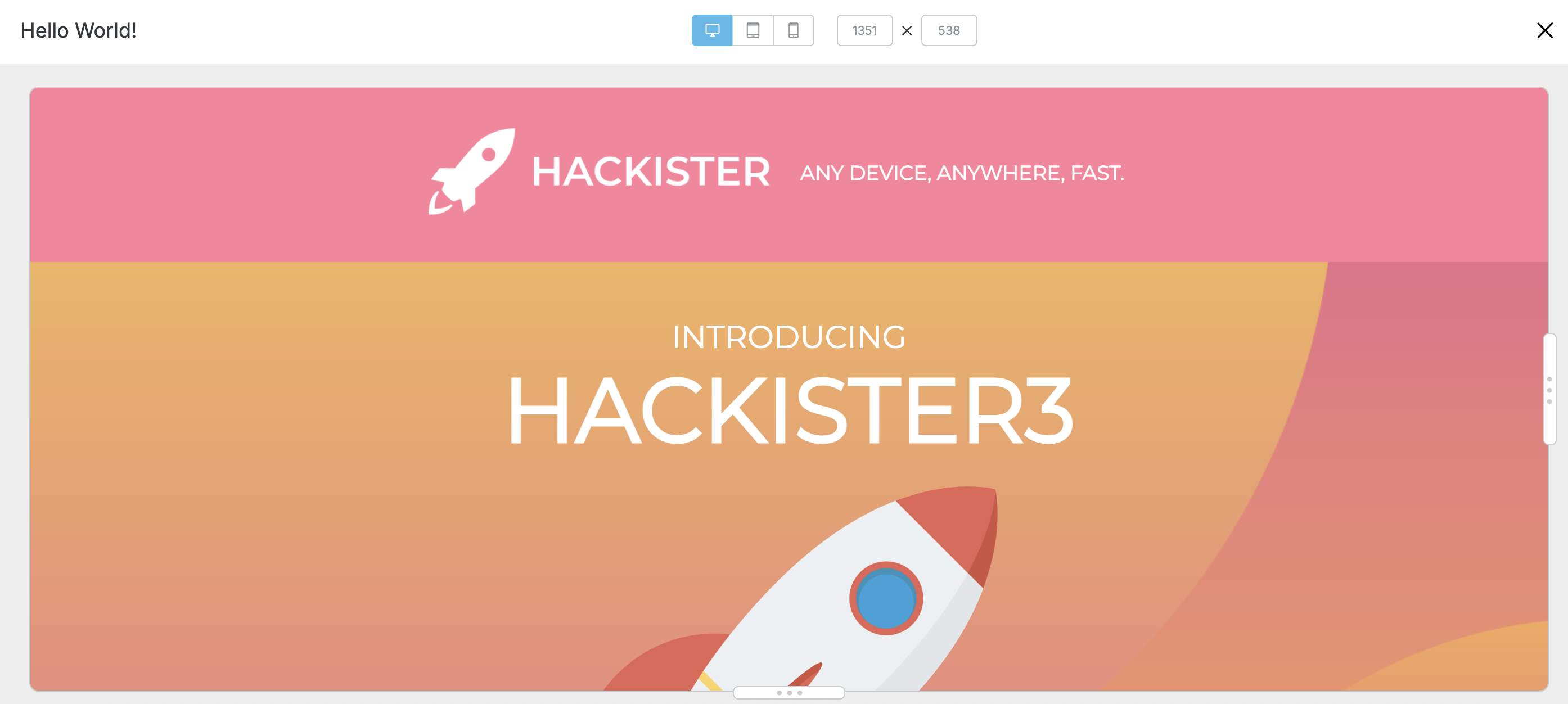
The following image shows what this configuration looks like to the end user on the frontend.
To remove the text altogether, ensure you leave a single space inside the string within the `beeConfig`. The following code snippet shows an example of this.
```javascript
var beeConfig = {
container: 'beefree-sdk-container',
translations: {
'mailup-common-page-preview': {
'preview-mode': ' ',
},
},
```
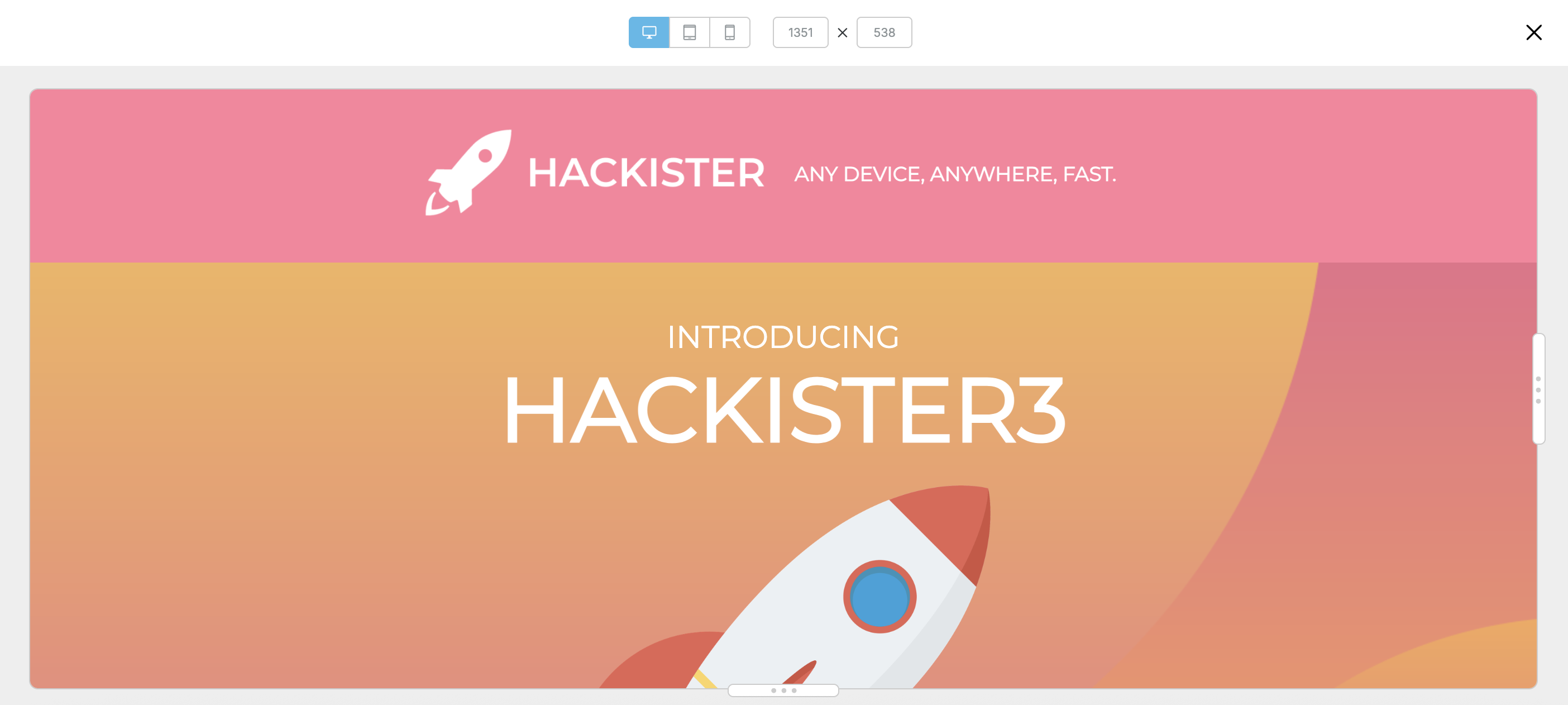
The following image shows how this looks to the end user on the frontend.
### Multi-language templates
Previewing designs for [Multi-language templates](https://docs.beefree.io/beefree-sdk/~/changes/480/other-customizations/multi-language-templates) is not available by default. This needs to be configured within the [Beefree SDK Developer Console](https://developers.beefree.io/login?from=website_menu).
Take the following steps to enable **Multi-language template** for your end users:
1. Log in to the [Beefree SDK Developer Console](https://developers.beefree.io/login?from=website_menu).
2. Navigate to the application you'd like to enable it for.
1. Click on the **Details** button.
2. Then, click **Configure Application.**
3. Scroll to the **Services** section.
1. Navigate to **Conent Personalization**.
4. Check **Multi-language template** to on.
5. Save and confirm your changes.
Checking the feature to on within the Developer Console is only the first step. Once this step is complete, you must add a configuration for Multi-language templates to your `beeConfig`. The following code snippet shows an example configuration.
```javascript
var beeConfig = {
container: 'beefree-sdk-container',
templateLanguage: { value: 'en-US', label: 'English' },
templateLanguages: [
{ value: 'es-ES', label: 'Español' },
{ value: 'de-DE', label: 'Deutsch' },
{ value: 'pt-BR', label: 'Português' },
{ value: 'fr-FR', label: 'Français' },
{ value: 'it-IT', label: 'Italiano' },
{ value: 'nl-NL', label: 'Nederlands' },
],
```
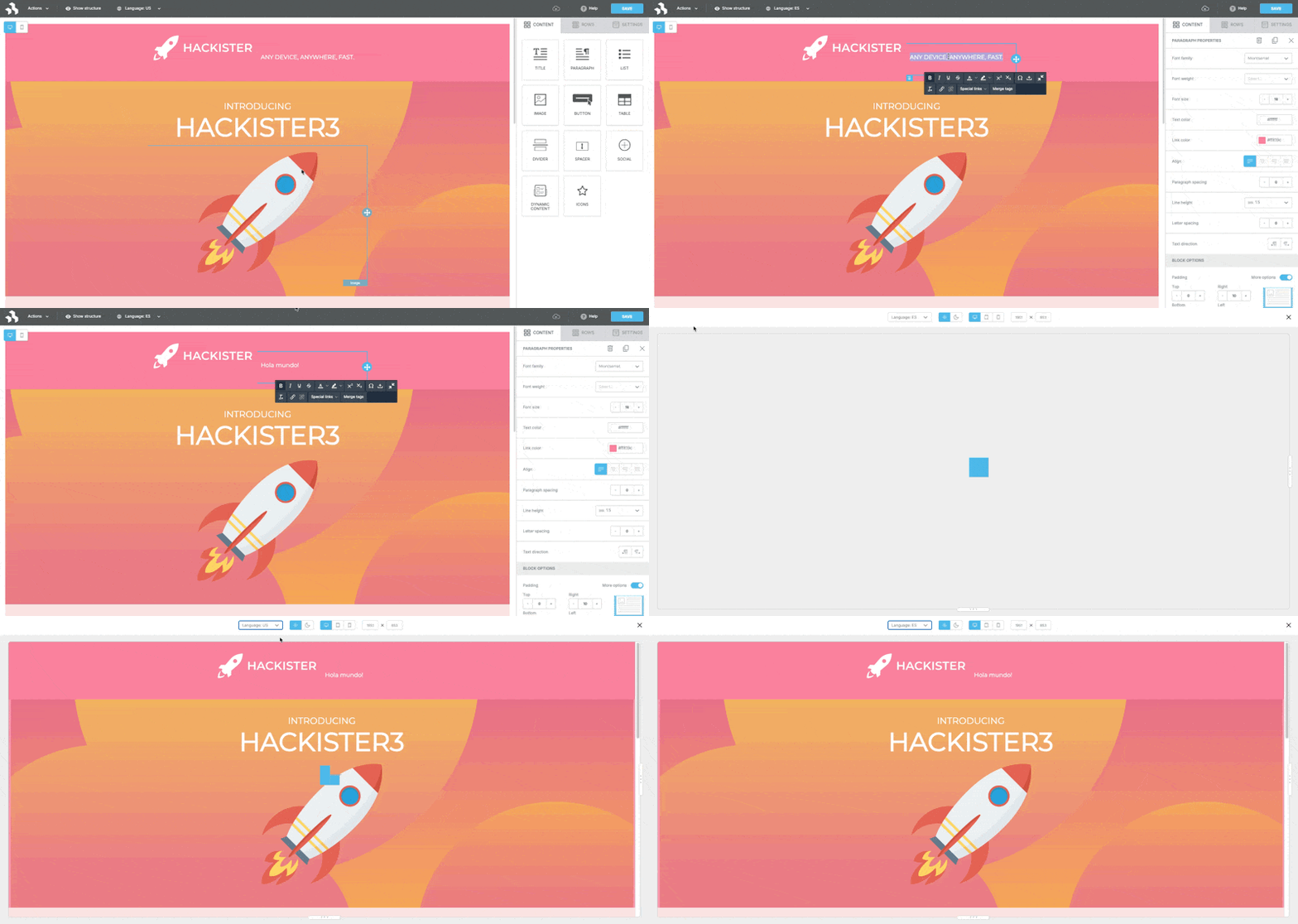
The following GIF shows a visual example of what this configuration looks like to the end user.
{% hint style="info" %}
**Note:** Use the [DeepL integration](https://docs.beefree.io/beefree-sdk/~/changes/480/builder-addons/partner-addons/deepl) to automatically translate a template in the primary language to other languages.
{% endhint %}
### Display Conditions
Previewing designs in Display Conditions is not available by default. This needs to be configured within the [Beefree SDK Developer Console](https://developers.beefree.io/login?from=website_menu).
Take the following steps to enable **Display Conditions** for your end users:
1. Log in to the [Beefree SDK Developer Console](https://developers.beefree.io/login?from=website_menu).
2. Navigate to the application you'd like to enable it for.
1. Click on the **Details** button.
2. Then, click **Configure Application.**
3. Scroll to the **Services** section.
1. Navigate to **Content Personalization**.
4. Check **Display Conditions** to on.
5. Save and confirm your changes.
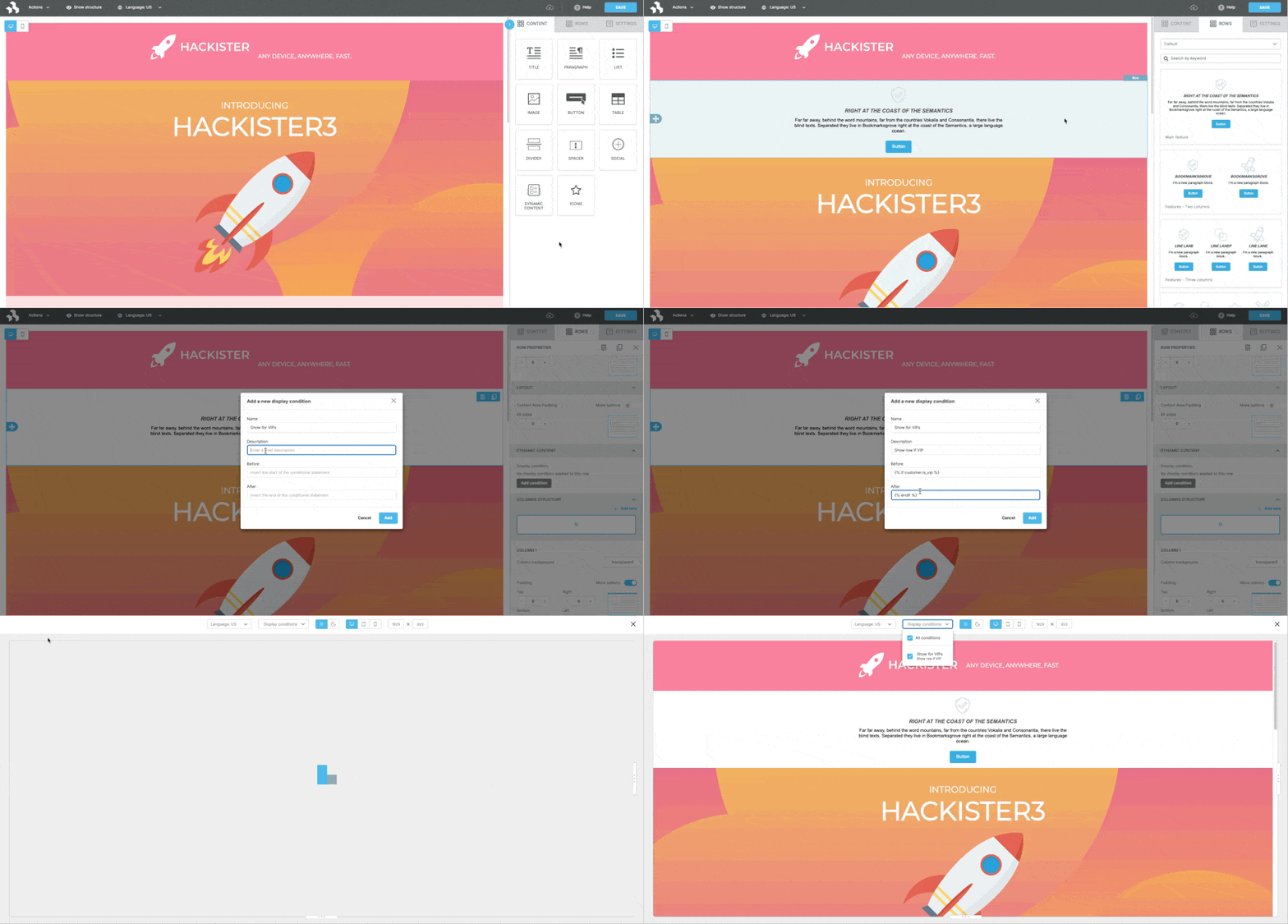
The GIF shows a visual example of what this option looks like to the end user.
### AMP or HTML view
Previewing designs in [AMP or HTML view](https://docs.beefree.io/beefree-sdk/~/changes/480/other-customizations/amp-for-email) is not available by default. This needs to be configured within the Beefree SDK Developer Console.
Take the following steps to enable **AMP or HTML view** for your end users:
1. Log in to the [Beefree SDK Developer Console](https://developers.beefree.io/login?from=website_menu).
2. Navigate to the application you'd like to enable it for.
1. Click on the **Details** button.
2. Then, click **Configure Application.**
3. Scroll to the **AMP Content** section.
4. Check **Enable AMP Content** to on.
5. Save and confirm your changes.
To add AMP support to your `beeConfig` and enable the [AMP Carousel](https://docs.beefree.io/beefree-sdk/~/changes/480/other-customizations/amp-for-email), you need to perform additional steps outside of checking the functionality to on within the [Beefree SDK Developer Console](https://developers.beefree.io/login?from=website_menu). This section discussing the additional requirements.
Take the following steps to configure AMP content client-side in your `beeConfig`:
1. Update your `beeConfig` for AMP Add a workspace property with type: 'mixed' to your `beeConfig`. This enables both HTML and AMP content in the editor.
Example `beeConfig` with AMP:
```javascript
var beeConfig = {
container: 'beefree-sdk-container',
workspace: {
type: 'mixed' // Enables AMP widgets and HTML fallback
},
// ...other config options...
onLoadWorkspace: function(workspace) {
console.log(`workspace: ${workspace} has been loaded`);
},
// ...other callbacks...
};
```
2. Add the `onLoadWorkspace` Callback
This callback is triggered when the workspace is loaded, confirming AMP is enabled:
```javascript
onLoadWorkspace: function(workspace) {
console.log(`workspace: ${workspace} has been loaded`);
},
```
3. Initialize the Beefree SDK
When you create the Beefree SDK instance, pass the updated beeConfig:
```javascript
beefreeSDKInstance.create(token, beeConfig, function (beefreeSDKInstance) {
// ...start the editor as usual...
});
```
#### Summary
* Enable AMP Carousel in the Developer Console.
* Set `workspace: { type: 'mixed' }` in beeConfig.
* Add the `onLoadWorkspace` callback.
This will activate AMP features (like the carousel) and allow you to build AMP-enabled emails in the Beefree SDK editor.
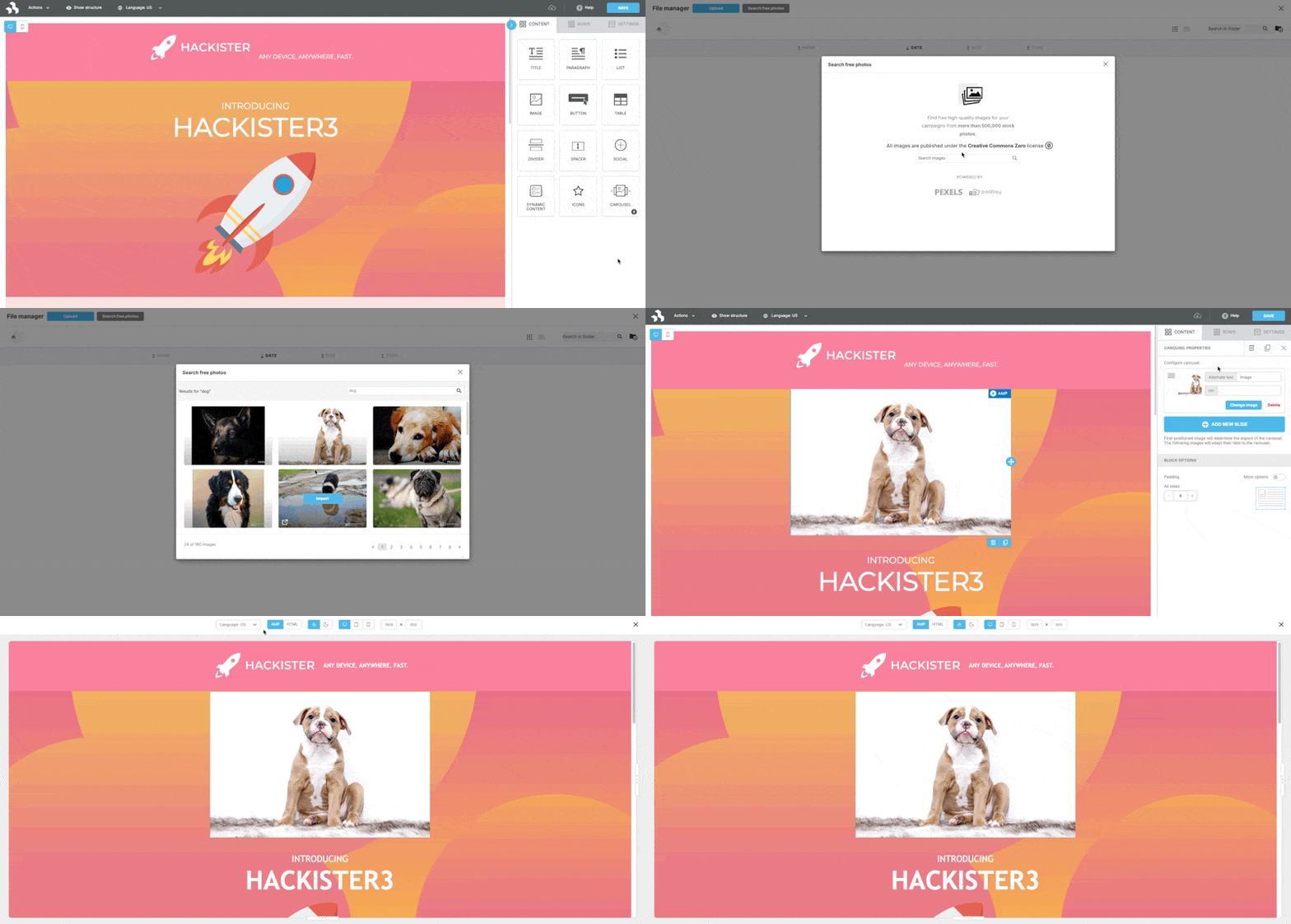
The GIF shows a visual example of what this option looks like to the end user.
### Dark Mode
Previewing designs in Dark mode is not available by default. This needs to be configured within the Beefree SDK Developer Console.
Take the following steps to enable **Dark Mode Preview** for your end users:
1. Log in to the [Beefree SDK Developer Console](https://developers.beefree.io/login?from=website_menu).
2. Navigate to the application you'd like to enable it for.
1. Click on the **Details** button.
2. Then, click **Configure Application.**
3. Scroll to the **Services** section.
1. Navigate to **Editing & Collaboration**.
4. Check **Dark mode preview** to on.
5. Save and confirm your changes.
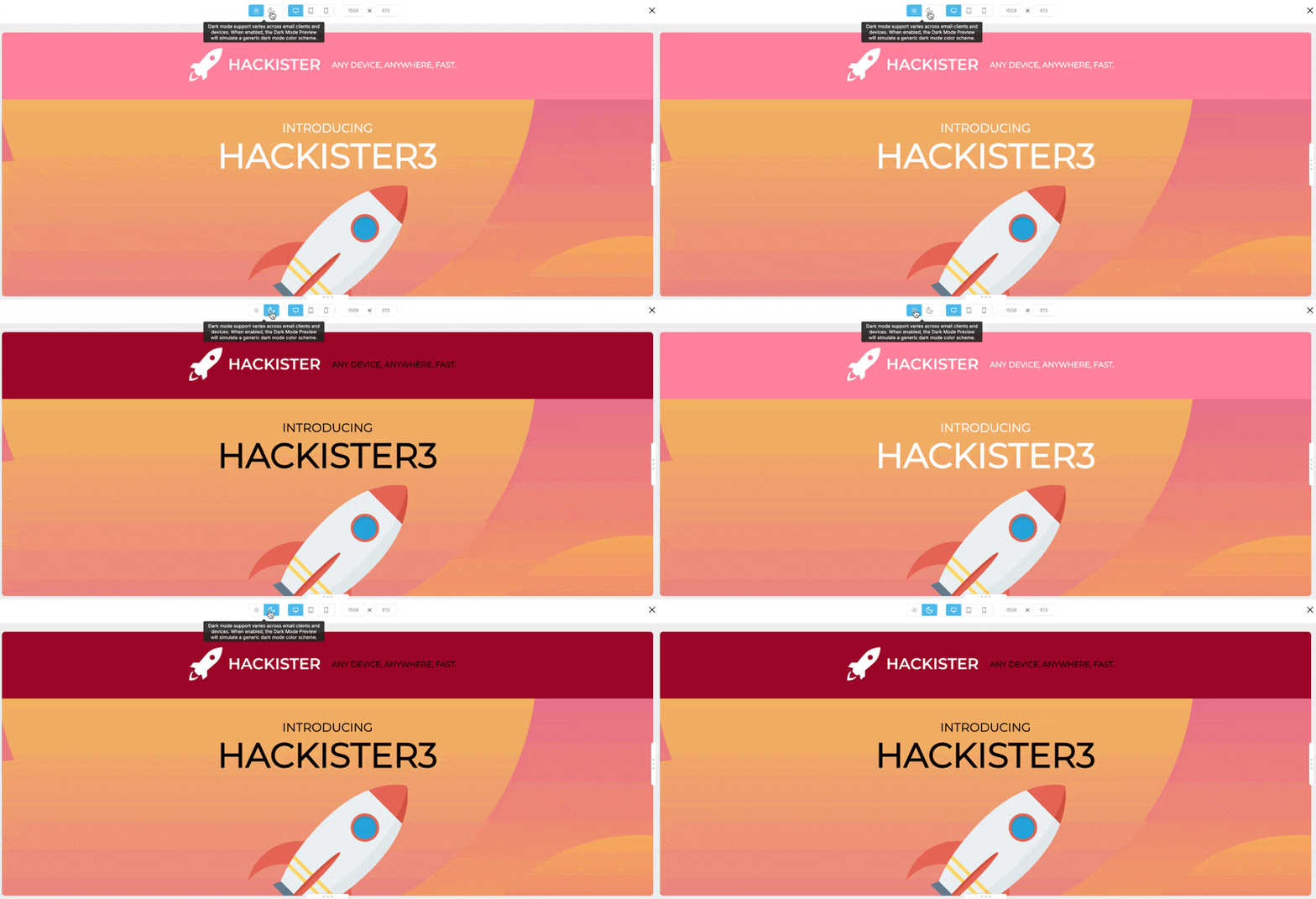
The GIF shows a visual example of what this option looks like to the end user.
### Desktop, Tablet, or Mobile View
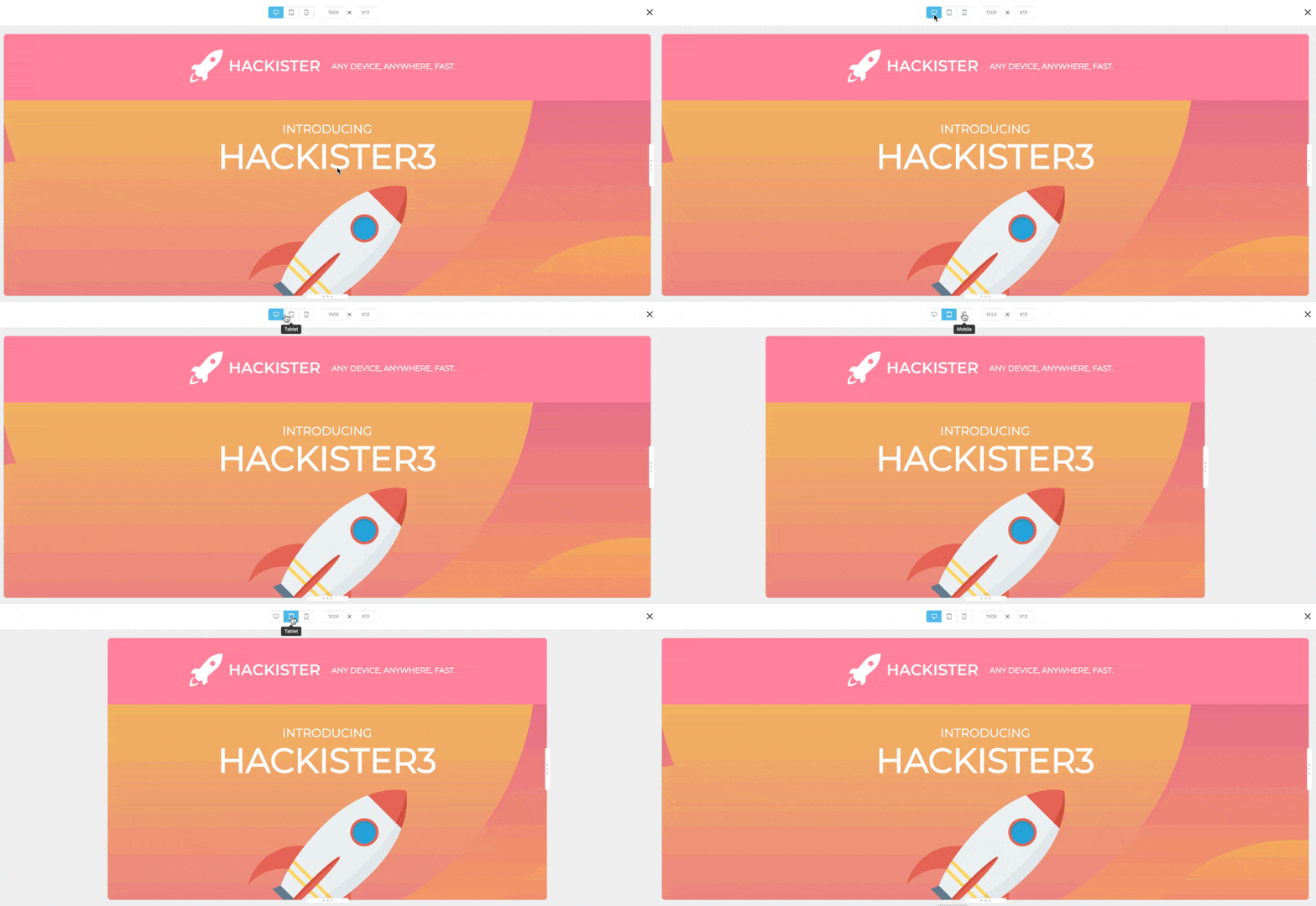
The Desktop, Tablet, or Mobile view is available by default on the Preview page. End users can select between devices to preview how their designs will look across all devices.
### Custom Viewport
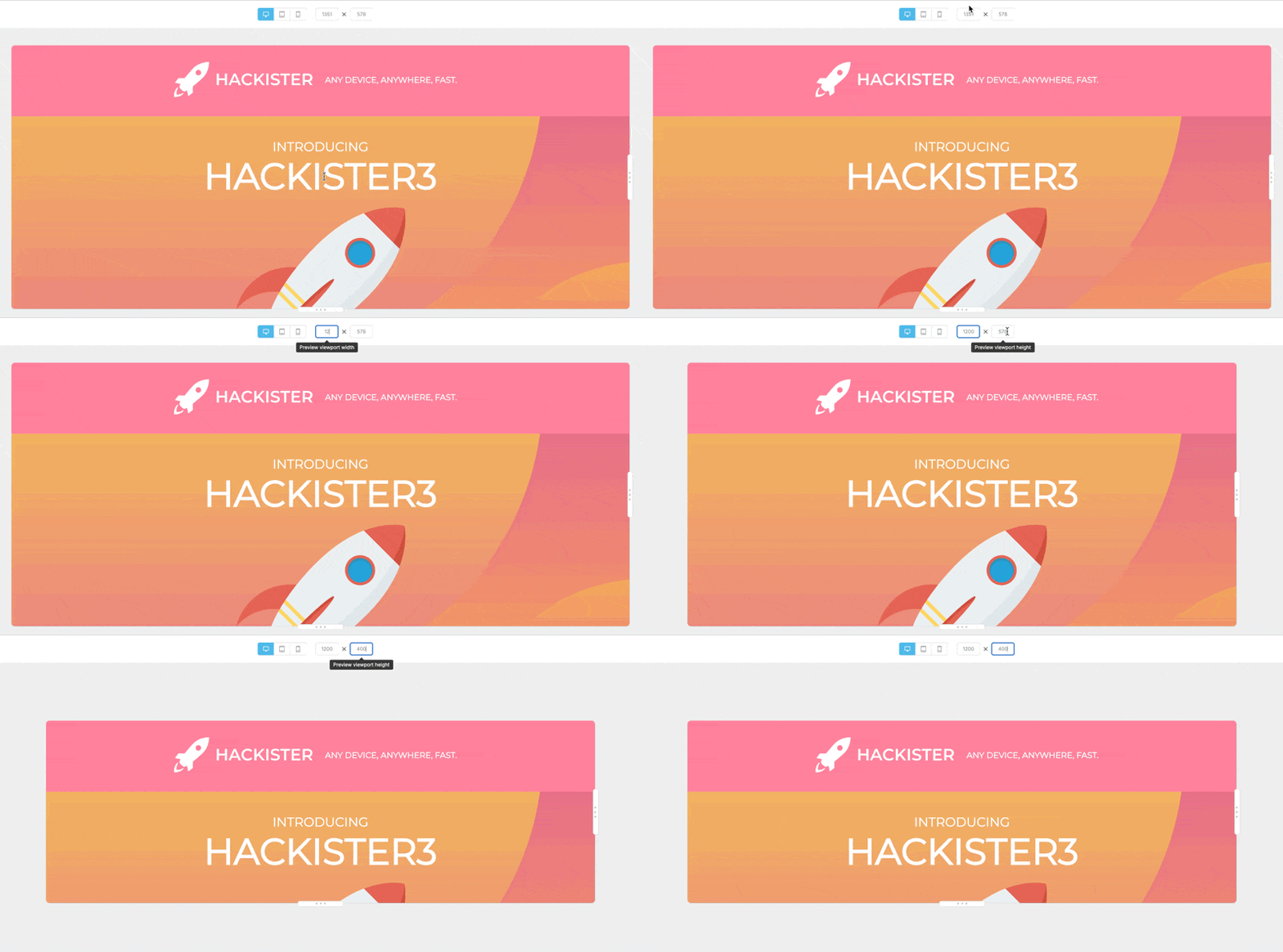
The custom viewport is available by default. End users can set a custom viewport width and a custom viewport height on the Preview page.
## End User Experience
The [white-label end user guide](https://docs.beefree.io/end-user-guide/preview-options/preview-designs) includes documentation you can add to your own knowledge base to support your end users as they use the Beefree SDK Preview option within your application.