# Connect your file storage system
As you may have noticed, when you create a new Beefree application, it comes with a default cloud storage option for files (images or files that the message uses or links to). This approach may fit well for applications that offer content creation for the first time, especially if they don’t need to share these files with other areas of the host application.
If you do want users to be able to access the same image and file directories that they use elsewhere in your application, we have a solution.
We created a way to connect to a custom file system provider, **allowing you to use your own file storage**, no matter which technology you use. A **custom file system provider** is an API that will allow a Beefree SDK application to perform actions with files outside of the Beefree SDK system, connecting your file system to the [Beefree SDK File Manager](https://docs.beefree.io/beefree-sdk/~/changes/480/file-manager/file-manager-application-overview).
It can be built with your preferred technology: just be sure to follow our instructions to ensure successful communication between the two systems.
Once successfully connected, when a user uploads a file or creates a new folder in the Beefree File Manager, this API will perform these actions in your storage, instead of our default cloud storage. Directories permissions, root directory to use, how thumbnails for images are generated, etc.: you decide.
## Getting Started: Data Formats
In order to let your Beefree application consume your FSP (File system provider) API, you will need to provide a Base URL to reach the API.
`Base URL: https://myfsp.com/path/to/your/base/endpoint`
Note that:
* the Base URL **must not** end with a trailing slash (/)
* it must be hosted on the HTTPS protocol
The API uses JSON as the input and output data format: Responses are [JSEND standard compliant](https://github.com/omniti-labs/jsend).
In the event of a successful response, the API returns a “success” status code (ex. `200 OK`) and a JSON object such as the following:
```json
{
"status": "success",
"data": { /* ... */ }
}
```
In the event an unexpected error occurred during request processing (i.e. missing mandatory request data), the API returns an “error” status code and a JSON object such as the following:
```json
{"status":"error","message":"something went wrong accessing backend filesystem"}
```
In the event a request fails, the API returns the error codes described in the [Error codes section](#error-codes).
## Authentication
Authentication is managed using Basic Authentication type. The Beefree SDK system’s resource server works as a proxy for FSP (File system provider) and consumes FSP API endpoints adding the following fields to HTTP Request Headers. Please note that **the API must use HTTPS** to grant secure connections and safe data transfer.
User information is segmented by [UID parameter](https://docs.beefree.io/beefree-sdk/~/changes/480/getting-started/readme/installation/how-the-uid-parameter-works).
```http
Authorization: Basic base64(username:password)
X-BEE-ClientId: ClientId
X-BEE-Uid: uid
```
| Field | Description |
| ------------------ | ----------------------------------------------------------------------------------------------------- |
| **Authorization** | Authentication used is Basic. A string formatted as username:password and encoded in base64 is passed |
| **X-BEE-ClientId** | The ClientId (to identify the integrator) |
| **X-BEE-Uid** | The uid (ex. useful to identify the user of an integrator) |
Ensure you save the `username`, `password`, and `base URL` in the **Configuration** section of the [Beefree SDK Console](https://developers.beefree.io/).
## Move Files in the File Manager
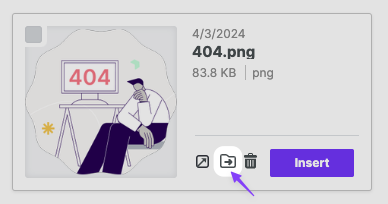
You can enable the move icon for files within the File manager. This move icon allows your end users to move their files between folders, locations, and so on within the File manger. They can access the move icon directly on the file within the File manager. The move icon is a folder with an arrow pointing right inside it. End users click this icon to initiate the process of relocating the corresponding file to a new destination.
Complete the following tasks to enable the move files feature for your custom FSP:
* Add a `can-move` field in the `extra` object in the [listing directory content response](#listing-directory-content). Reference the Listing Directory Content section for steps on how to complete this.
* Modify the listing response to limit its content when the request includes the `x-bee-fsp-flags: move` header. Reference the [Listing for Move Dialog section](#listing-for-move-dialog) for steps on how to complete this.
* Implement a PATCH method for file URLs with `conflict_strategy` management. Reference the [Implement PATCH Method section](#implement-patch-method) for steps on how to complete this.
## File System operations
This section will show samples of successful requests to FSP (File system provider) API. A response contains metadata about directory and files.
## Metadata
In this section, we define the following types of metadata:
* [Common meta](#common-meta)
* [File-specific meta](#file-specific-meta)
* [Directory-specific meta](#directory-specific-meta)
### **Common Meta**
The following table lists the fields, descriptions, types and examples for the FSP API response common meta.
| Field | Description | Type | Example |
| --------------- | --------------------------------------------------------------------------------------------------------- | -------- | -------------------------------------------------------------------------------- |
| `mime-type` | application/directory for directories and specific mime-type for files | `string` | “application/directory”, “images/png”, … |
| `name` | resource name | `string` | “my file.jpg” |
| `path` | absolute path to resource in FSP | `string` | “/absolute/path/to/my file.jpg”, “/absolute/path/to/my directory/”, … |
| `last-modified` | UNIX time with (milliseconds) of last modification of this resource | `int` |
1445401740000 (stands for: Wed, 21 Oct 2015 04:29:00 GMT)
|
| `size` | size (in byte) of the resource, this is zero (0) for directories | `int` | `2048` |
| `permissions` | defines the access grants to the resource, can be `ro` for read-only access or `rw` for read-write access | `string` | `ro` or `rw` |
| `extra` | generic extra data (for future extensions) | `object` | |
### **File-specific Meta**
The following table lists the fields, descriptions, notes and examples for the FSP API response file-specific meta.
| Field | Description | Notes | Type |
| ------------ | ---------------------------------------- | -------------------------------------------------- | -------- |
| `public-url` | Public url of this file | This field **must** be url-encoded | `string` |
| `thumbnail` | Public url of the thumbnail of this file | This field is optional and **must** be url-encoded | `string` |
### **Directory specific Meta**
The following table lists the fields, descriptions, notes and examples for the FSP API response directory-specific meta.
| Field | Description | Notes | Type |
| ------------ | ----------------------------------------------- | ----------------------------------------------------------------------------------- | ----- |
| `item-count` | number of contained items (directories + files) | This parameter is optional, if you don’t have this data, feel free to pass zero `0` | `int` |
## Listing Directories
**Description:** Use this to list the directories within the File manager.
#### **Request**
The following code shows an example request for listing directories.
```http
GET /
Authorization: Basic 5AMPL3
X-BEE-ClientId: BeeFree
X-BEE-Uid: 1111-2222-333-444
```
#### **Response**
The following code shows an example response for listing directories.
```json
{
"status": "success",
"data": {
"meta": {
"mime-type": "application/directory",
"name": "root",
"path": "/",
"last-modified": 1432982102000,
"size": 0,
"permissions": "ro",
"item-count": 2,
"extra": {}, // if null, please use empty object
},
"items": [
{
"mime-type": "application/directory",
"name": "shared",
"path": "/shared/",
"last-modified": 1432984102000,
"size": 0,
"permissions": "ro",
"item-count": 13,
"extra": {}, // if null, please use empty object
},
{
"mime-type": "application/directory",
"name": "mydir",
"path": "/mydir/",
"last-modified": 1432982102000,
"size": 0,
"permissions": "rw",
"item-count": 3,
"extra": {}, // if null, please use empty object
}
]
}
}
```
Each resource returned by the API has a `meta` field with metadata. Directory content is returned into `items` field as array of metadata of contained resources.
#### **Resource access notes**
Some notes about resources access management in the previous example:
* `/shared/` cannot be renamed, because it is contained in a `ro` directory
* `/mydir/` cannot be renamed, because it is contained in a `ro` directory
* user cannot “CRUD” resources in `/shared/`, because it is `ro`
* user can “CRUD” resources in `/mydir/`, because it is `rw`
## Listing Directory Content
**Description:** This response tells the user interface (UI) whether or not to show the move icon for files within the File manager.
### Display the Move Icon
The `can-move` property controls whether or not the move button is visible within the user interface (UI).
Take the following steps to display the move icon for file within the File manager:
1. In the response of the listing endpoint, add a new field named `can-move` within the `extra` object for each file item.
2. The `can-move` field has a boolean value indicating whether the file can be moved. You can set this value to `true` or `false`.
#### **Request**
The following code shows an example request for listing directory content.
```http
GET /mydir/
Authorization: Basic 5AMPL3
X-BEE-ClientId: BeeFree
X-BEE-Uid: 1111-2222-333-444
```
#### **Response**
The following code snippet shows an example of the `can-move` property set to true.
```json
{
"name": "image1.jpg",
"path": "/image1.jpg",
"last-modified": 1703065836532,
"permissions": "rw",
"mime-type": "image/jpeg",
"size": 184149,
"public-url": "https://myfsp.com/path/to/image1.jpg",
"thumbnail": "https://myfsp.com/path/to/image1.jpg_thumb.png",
"extra": {
"can-move": true
}
}
```
#### Response Metadata
The following table shows the response metadata and its corresponding type and description.
| Metadata | Type | Description |
| --------------- | ------- | --------------------------------------------------------------------------------------------------------------------- |
| `name` | string | File name. |
| `path` | string | File path. |
| `last-modified` | number | The date that the file was last modified. |
| `permissions` | string | The permissions for the file. |
| `mime-type` | string | The file mime type. |
| `size` | number | The size of the file. |
| `public-url` | string | The public-url to access the file. |
| `thumbnail` | string | The thumbnail URL. |
| `extra` | object | The object that contains the `can-move` property to true or false. |
| `can-move` | boolean | A boolean key within the extra object that displays the move button on a file in the File manager when set to `true`. |
## Listing for Move Dialog
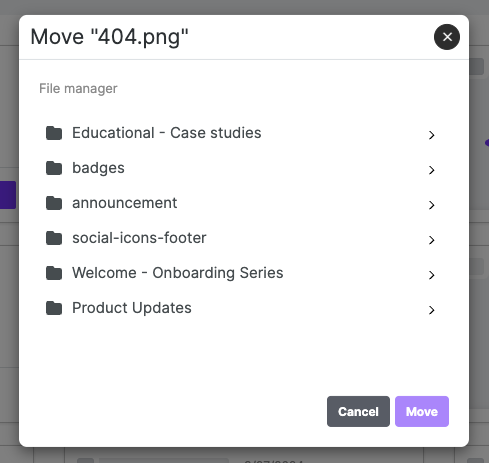
**Description:** When the move button is pressed, the "move dialog" appears and the usual listing URL is called.
The following image shows an example of the move dialog. This dialog appears after the end user clicks on the move icon for a file. In the image, you can see that the move dialog includes a list of directories for the end user to select from in order to relocate the file.
The following code shows an example of the `GET` request that occurs when the move icon is pressed within the File manager and the "move dialog" appears. This `GET` request includes the `x-bee-fsp-flags: move` header, which is responsible for this behavior.
```http
GET /mydir/
Authorization: Basic 5AMPL3
X-BEE-ClientId: BeeFree
X-BEE-Uid: 1111-2222-333-444
X-BEE-fsp-flags: move
```
The move dialog only shows folders. The `GET` request will return the full response, including the folders and the files. However, the response will only show items with `"mime-type": "application/directory"` . The File System Provider recognizes this call by the `x-bee-fsp-flags: move` header.
For the move dialog to work effectively, it is important that you limit the size of the response. Ensure that the response to this request only contains folders and not any files.
## Create a new directory
**Description:** Use this when creating a new directory within the File manager.
#### **Request**
The following code shows an example request for creating a new directory.
```http
POST /mydir/new%20dir/
Authorization: Basic 5AMPL3
X-BEE-ClientId: BeeFree
X-BEE-Uid: 1111-2222-333-444
```
#### **Response**
The following code shows an example response for creating a new directory.
```json
{
"status": "success",
"data": {
"meta": {
"mime-type": "application/directory",
"name": "new dir",
"path": "/mydir/new dir",
"last-modified": 1432982102000,
"size": 0,
"permissions": "rw",
"item-count": 0,
"extra": {}, // if null, please use empty object
}
}
}
```
## **Create operation notes:**
* in order for the create directory operation to succeed, the **containing** directory **must** exist, and the **contained** (new) directory **must not** exist
* directory names will match the following regular expression: \[ a-zA-Z0-9.\_- \\(\\)]+
## Deleting a directory
**Description:** You can only delete empty directories. Use this to delete a directory when it is empty.
#### **Request**
The following code shows an example request for deleting a directory.
```http
DELETE /my%20dir/docs/
Authorization: Basic 5AMPL3
X-BEE-ClientId: BeeFree
X-BEE-Uid: 1111-2222-333-444
```
#### **Response**
The following code shows an example response for deleting a directory.
```json
{
"status": "success",
"data": null
}
```
## Uploading a file
This section discusses how the Beefree editor interacts with a Custom File Storage Provider (FSP) when uploading images generated or modified via client-side features like **Apply Effects** or **AI Image Generator**.
When an end user finishes applying visual effects to an image or generates a new image via AI within the Beefree editor, the application performs the following:
* Applies the effect **client-side**
* Uploads the modified or generated image via a **`POST`** request to the `FSP`, using the following path structure:
```
POST /editor_images/random-file-name.ext
```
{% hint style="info" %}
**Important:** This behavior occurs for both **Apply Effects** and **AI Image Generator features**.
{% endhint %}
### Folder Management Requirement
The custom FSP must handle folder creation dynamically based on the request path. If the `/editor_images/` folder does not exist, it must be created programmatically before saving the uploaded file.
#### Implementation Notes
To support this functionality, your FSP should:
1. **Inspect the request path:** Check if `/editor_images/` is part of the URL path.
2. **Ensure the target folder exists:** If it does not, create it before handling the file write.
3. **Continue with the upload process:** Once everything looks good, perform the upload.
### Identifying Uploads from Editor Features
Currently, there's no payload-based indicator to distinguish between uploads originating from **Apply Effects**, **AI Image Generator**, or other direct uploads. Uploads from both **Apply Effects** and **AI Generator** will include `/editor_images/` in the request URL.
### Example Upload Request and Response
This section includes an example upload request and response for additional reference.
#### **Request**
The following code shows an example request for uploading a file.
```http
POST /mydir/my%20pic3.png
Authorization: Basic 5AMPL3
X-BEE-ClientId: BeeFree
X-BEE-Uid: 1111-2222-333-444
Content-Type: application/json
{
"source": "http://www.remotehost.com/remotepic.png",
"conflict_strategy": "keep"
}
```
#### **Response**
The following code shows an example response for uploading a file.
```json
{
"status": "success",
"data": {
"meta": {
"mime-type": "image/png",
"name": "my pic3.png",
"path": "/mydir/my pic3.png",
"last-modified": 1432982102000,
"size": 400000,
"permissions": "rw",
"public-url": "https://resources-bucket.s3.amazonaws.com/1111-2222-333-444/my%20pic3.png",
"thumbnail": "https://my-thumbnail-service.com/my%20pic3.png",
"extra": {}, // if null, please use empty object
}
}
}
```
## **Managing a File Name Conflict**
#### Handling Upload Conflicts
If an upload has a name conflict with an existing file in the target folder, the FSP must decide how to manage this conflict:
1. **Return an Error**: Notify the user about the conflict and do not proceed with the upload.
2. **Ask the User**: Prompt the user for instructions on how to handle the conflict.
3. **Overwrite File**: Replace the existing file with the new upload.
4. **Rename and Complete**: Complete the upload using a different name, usually by appending a suffix. Ensure the metadata is consistent with the newly created file.
**Ask the user what to do**:\
The FSP can prompt the user for action only if the `conflict_strategy` field is set to `ask`. In this scenario, the FSP must return a `3400` error code, instructing the Builder to display a dialog to the user.
Example response:
```json
{
"code": 3400,
"message": "Resource Already Present"
}
```
When the user clicks the *keep* or *replace* buttons, a new upload request is sent to the FSP with the `conflict_strategy` field set to either `keep` or `replace`.
If there's a filename conflict, the FSP should return a `3401` error code. This instructs the Builder to show a toast notification to the user and prompt them with a dialog.
{% hint style="info" %}
**Note:** When you replace an image, the thumbnail updates immediately to show the new version. However, the main image URL, which is used in the stage and in any previously sent emails, may still display the old version until the cache clears. This cache expiration typically happens within 2 hours but can vary.
{% endhint %}
### Upload Operation Notes
Uploads are proxied by Beefree’s resource APIs, which enforce the maximum file size configured by the Console. Uploads from various sources are handled as follows:
* **Image Editor**: POST to `/editor_images/{filename}`. Filename is a UUID.
* **Page Builder Favicons**: POST to `/favicon_images/{filename}`.
* **Stage**: POST to `/editor_images/{filename}`.
## Deleting a file
**Description:** Use this to delete a file within the File manager.
#### **Request**
The following code shows an example request for deleting a file.
```http
DELETE /mydir/my%20pic2.png
Authorization: Basic 5AMPL3
X-BEE-ClientId: BeeFree
X-BEE-Uid: 1111-2222-333-444
```
#### **Response**
The following code shows an example response for deleting a file.
```json
{
"status": "success",
"data": null
}
```
## **Implement PATCH Method**
**Description:** When the move icon is clicked in the File manager, the File System Provider (FSP) will receive this call. It is a PATCH on the URL of the file to move.
The final step in activating the [move feature](#move-files-in-the-file-manager) within your File manager is to configure a conflict resolution strategy. This strategy is triggered when there is a file conflict within the File manager.
An example of a conflict is when you are moving a file from one folder to another, but the destination folder has an existing file with the same name as the file being moved to that folder. For example, you want to move a pizza.jpg file to a folder that already contains a pizza.jpg file. In this scenario, there is a conflict because both files cannot have the same name.
The PATCH Method enables you set a `conflict_strategy` that resolves scenarios like these when they occur.
The following code shows an example of this method.
```http
PATCH /mydir/file-to-move.jpg
Authorization: Basic 5AMPL3
X-BEE-ClientId: BeeFree
X-BEE-Uid: 1111-2222-333-444
Content-Type: application/json
{
"new_path": "/my/other/dir/",
"conflict_strategy": ""
}
```
### Move Response in Case of Success
The following response is the same as the [upload method](#uploading-a-file). This is the response you will see in the event that a file was successfully moved to a new location.
```json
{
"status": "success",
"data": {
"meta": {
...
}
}
}
```
### Move Response in Case of Name Conflict
This is the response you will see in the event that a file was *not* successfully moved to a new location, and an error occurred.
```json
{
"code": 3400,
"message": "Resource Already Present"
}
```
In the event a name conflict occurs, the File manager displays a dialog to the user. You have three options to select from to resolve this conflict using the `conflict_strategy` which is passed to the FSP.
These three conflict resolution options are the following:
* cancel ( "conflict\_strategy": "" ): nothing happens
* keep both ( "conflict\_strategy": "keep" ): move the file, in order to keep both files our implementation appends a suffix to the new one. For example, the pizza.jpg file will become pizza\_1.jpg ( \_2 , \_3 , ...)
* replace ( "conflict\_strategy": "replace" ): move the file, it overwrites the old file with the new one
{% hint style="info" %}
**The trailing slash (/) on the request matters!**\
\
The FSP API uses the trailing slash (/) on the resource path to understand if the required resource is a file (no trailing slash) or a directory (with trailing slash).\
\
For example, if the FSP API receives a `GET` request for `/sample.jpg` it will return `sample.jpg` file metadata, whereas if it receives a GET request for `/sample.jpg/` it will return a list of the content located in the `sample.jpg` directory.
{% endhint %}
## Status codes and Error codes
In case of errors, the API returns a JSON object structured like this:
```json
{
"code": 3200,
"message": "Resource Not Found",
"details": "http://myfsp.com/docs/errorcodes/404"
}
```
To read the full list of possible errors, please refer to [this page](https://docs.beefree.io/beefree-sdk/~/changes/480/resources/error-management/file-system-provider-errors).
## Displaying thumbnails
Thumbnail generation is up to the developer of the file system provider.
In case you don’t want to develop your own thumbnail generation procedure, you can use a service like [rethumb by Rapid](https://rapidapi.com/pmav/api/rethumb) to create a thumbnail URL.
The `thumbnail` field is optional, so if you don’t want a thumbnail for your file, do not pass the field and the Beefree system will show you a generic icon based on the mime type you passed.
The thumbnail image must be contained in a 200px by 200px virtual square (see pictures below).