> For the complete documentation index, see [llms.txt](https://docs.beefree.io/end-user-guide/llms.txt). Markdown versions of documentation pages are available by appending `.md` to page URLs; this page is available as [Markdown](https://docs.beefree.io/end-user-guide/design-tools/undo-redo-and-history.md).
# Undo, Redo, and History
#### Overview
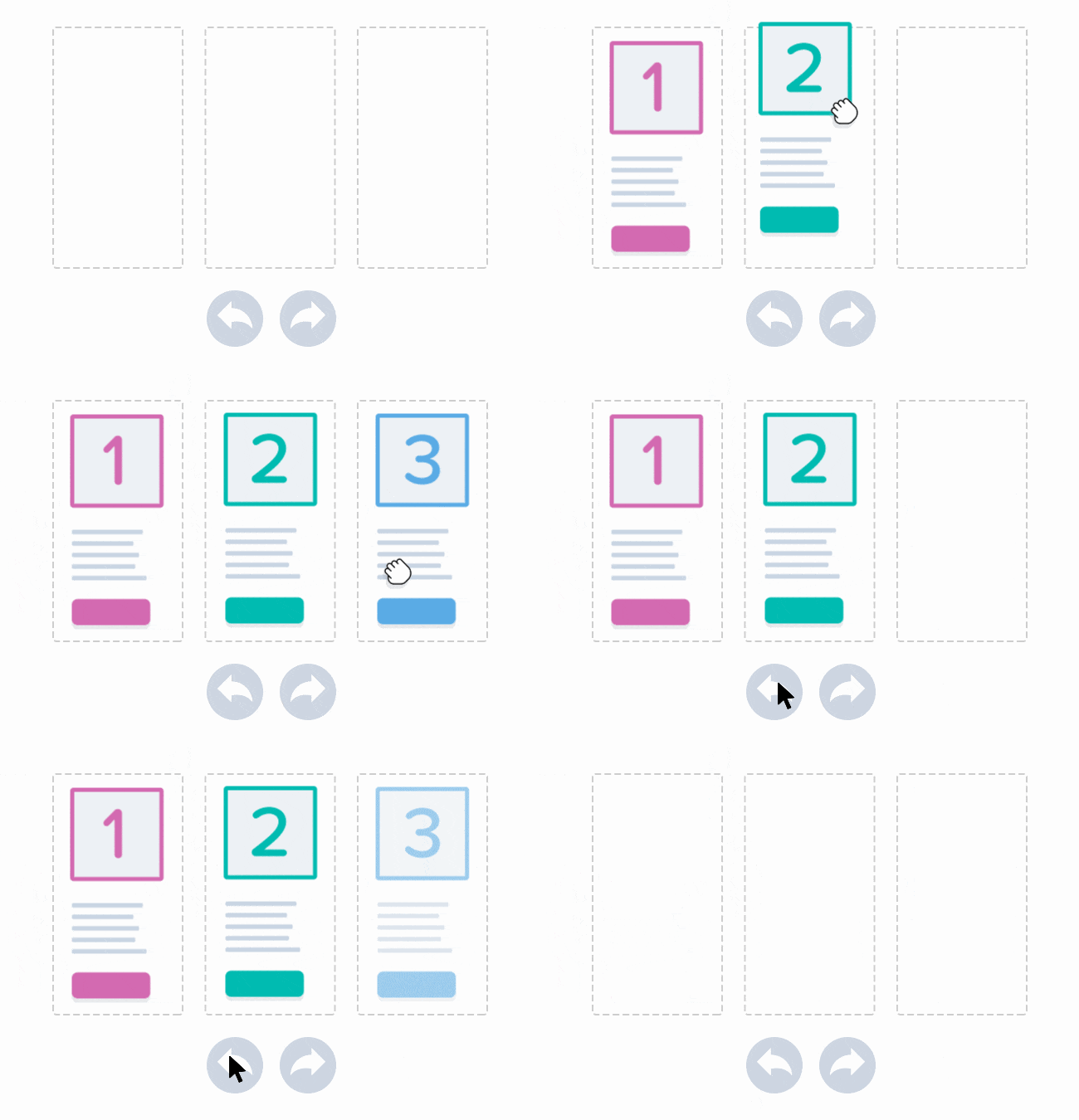
The Undo, Redo, and History functions are essential tools that enhance your editing experience in the builder. They provide you with a safety net for changes, allowing you to navigate back and forth in your edit history effortlessly.
#### User Interface
When you make a change in your design, an "Undo widget" appears at the bottom left corner of the builder interface. This widget consists of three main elements:
* Undo Arrow: Takes you back one step in your edit history.
* Redo Arrow: Reapplies an undone action, moving you forward in the edit history.
* History Icon: Opens a timeline that shows a list of your most recent changes.
#### History Timeline
Clicking on the History Icon opens a timeline displaying your recent actions. For each event, the builder provides:
* Type Icon: An icon to indicate what type of content changed (image, text, etc.)
* Description: Details about the change, often including the new value of the modified element.
* Timestamp: The exact time when the change took place.
These details offer a high degree of precision when you want to revert to a specific prior state.
#### Selecting Previous Steps
When you click on an entry in the history timeline, the builder highlights the specific content or row that was edited, providing you with context for the change.
#### Persistence and Limitations
The Undo widget remembers up to 15 of the most recent changes during the current browser session. However, it doesn't store changes made during other browser sessions. If you want to revert all the way to the start, you can rewind to the "opened" step in the timeline.
#### Co-Editing Considerations
Note that the introduction of a Co-editing feature impacts the behavior of the Undo/Redo functions to prevent unwanted changes when multiple people are editing.
#### Version Restoration
If you need to revert to a previous version of the entire design, there is usually a separate "design version history" feature that you can use for that purpose.
Understanding how to use these Undo, Redo, and History features effectively will give you more freedom and confidence while editing, knowing that you can easily correct any mistakes or revisit earlier versions of your design.
---
# Agent Instructions
This documentation is published with GitBook. GitBook is the documentation platform designed so that both humans and AI agents can read, navigate, and reason over technical content effectively. Learn more at gitbook.com.
## Querying This Documentation
If you need additional information that is not directly available in this page, you can query the documentation by asking a question.
Perform an HTTP GET request on the following URL with the `ask` and `goal` query parameters:
```
GET https://docs.beefree.io/end-user-guide/design-tools/undo-redo-and-history.md?ask=&goal=
```
`ask` is the immediate question: it should be specific, self-contained, and written in natural language.
`goal` is what the user is ultimately trying to achieve, the reason they need the answer. Sharing it helps GitBook give you a better, more relevant answer. A goal is most helpful when it describes the outcome the user wants rather than restating the question. For example, with `ask=how do I create an API token`, a goal like `automate deployments from our CI pipeline` lets GitBook tailor the answer to that use case.
The response will contain a direct answer to the question and relevant excerpts and sources from the documentation.
Use this mechanism when the answer is not explicitly present in the current page, you need clarification or additional context, or you want to retrieve related documentation sections.